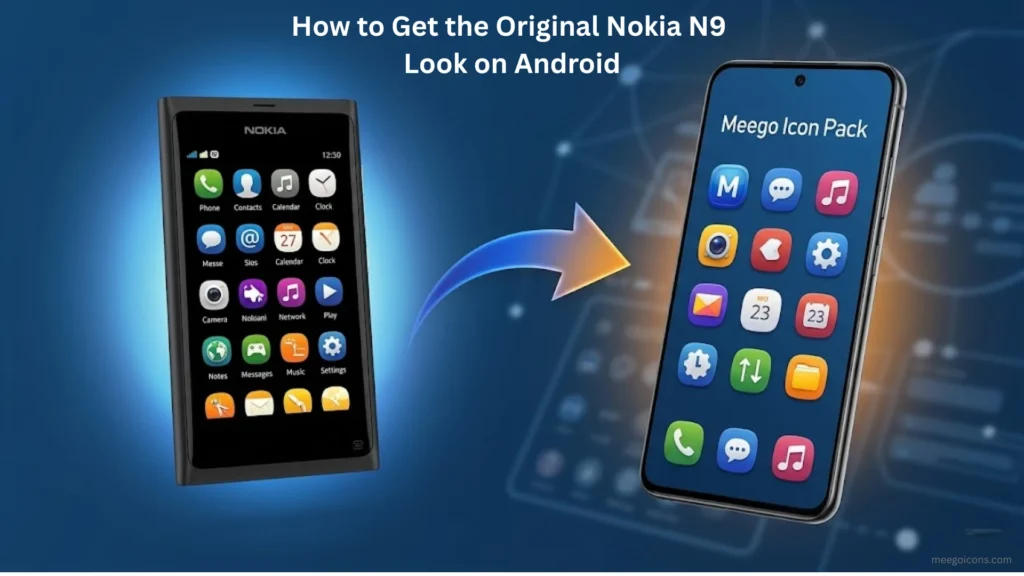
How to Get the Original Nokia N9 Look on Android
The Nokia N9’s true magic wasn’t in its Meego icons, but in its seamless interaction. Simply installing an icon pack will give you the same old Android experience.
For a true transformation, you’ll need to use Android Launchers like Nova Launcher or Lawnchair. In these launchers, you should set the desktop grid to 4×5. This creates the “breezy” space between icons that was a hallmark of the original MeeGo UI.
The Sound of MeeGo (Nostalgic Audio)
The Nokia N9 wasn’t just visually distinctive, its audio identity was also quite unique. If your phone is getting modern Material Design sounds, the transformation is incomplete.
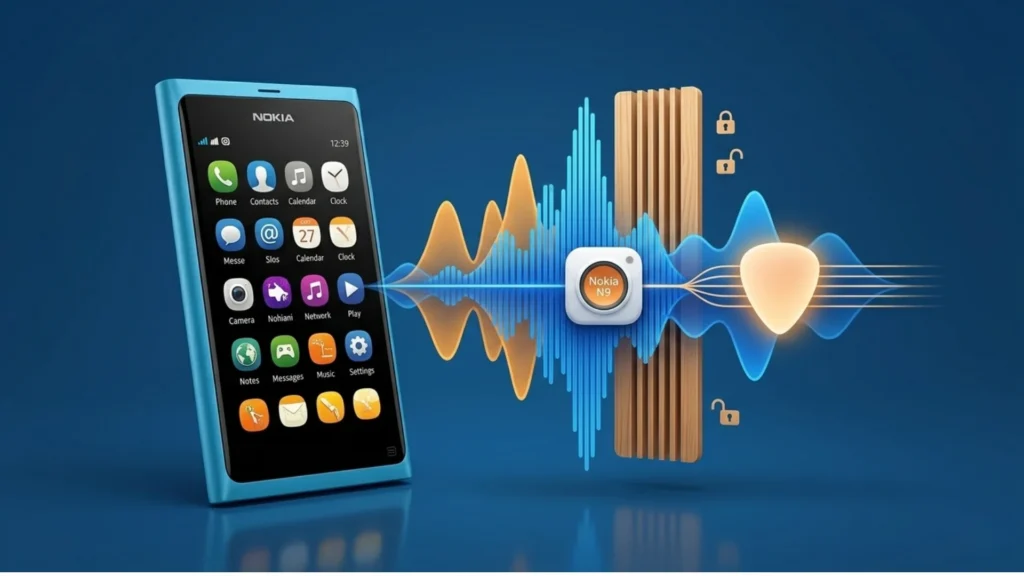
UI Sounds: MeeGo had a “low-pitched” and “wooden click” sound when you locked or unlocked the screen. You can download these sounds from Zedge or our Original N9 Sound Pack and set them in Android Settings > Sound & Vibration.
The Iconic Ringtone: Set the specific MeeGo Edition version of “Nokia Tune” based on soft guitar and minimalist tones.
The Glance Screen (Always On Display)
Nokia introduced the Glance Screen concept with the N9, the father of today’s Always On Display (AOD).
Implementation: If you have an AMOLED display, use the Muviz Edge or AOA: Always On Display app.
Calibration: Select Nokia Pure as the Clock font and set the color to a light “White-Grey.” MeeGo’s hallmark was that the clock screen was never “static”; it kept moving to monitor battery health. This setup will make your phone appear exactly like the original N9 in standby mode.
Custom Gestures (The Original Swipe Experience)
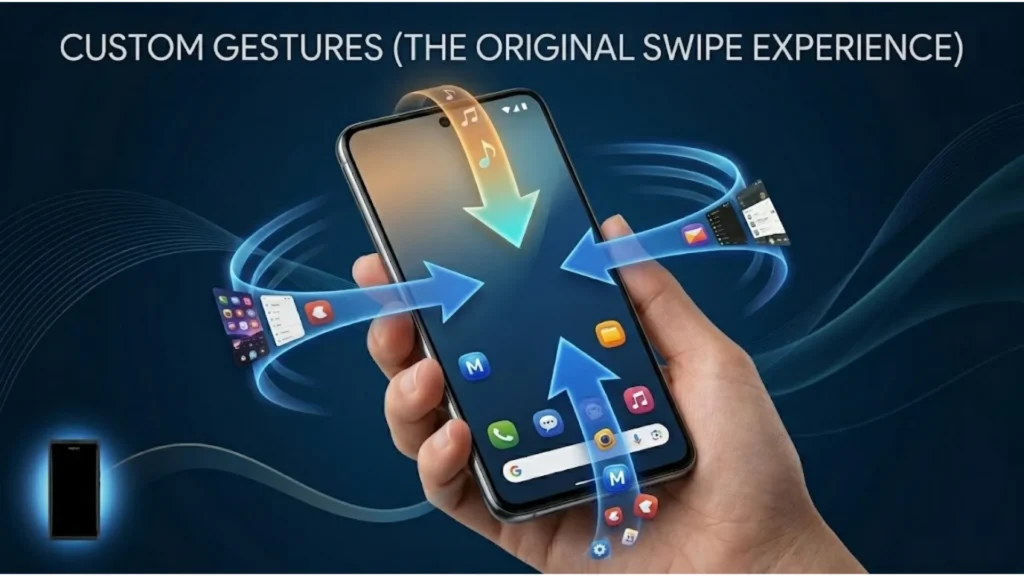
The foundation of MeeGo OS was based on edge swipes, not buttons. “Swipe up for home” is common on Android, but on the N9, you could switch apps or minimize an app by swiping in from any edge (left, right, or top).
The Problem with Stock Android: Today’s Android gestures are too bulky and don’t offer the fluidity of the original N9.
The Expert Solution: To reconstruct the original N9 gestures, you need the Edge Gestures or Fluid Navigation Gestures (FNG) app (we set up the Lawnchair launcher in Step 1; this app will now handle gestures).
How to Configure N9 Gestures on Android
Bottom Edge (Swipe Up): Set this gesture to “Action: Home.” On the original N9, swiping up minimized the app.
Left/Right Edges (Swipe In): In the original MeeGo, swiping left/right switched between open apps. On Android, set this to “Action: Recent Apps” or “Action: Previous App.”
Top Edge (Swipe Down): This is a little tricky. On the N9, swiping down would “Close” the app. On Android, we can map this to “Action: Pull Down Notification Panel” or, if you’re a root user, strictly “Action: Close App.”
Wallpapers & Typography (The Final Polish)
Now that your launcher, icons, and gestures are set, the last step is to fix the phone’s visual identity. The Nokia N9’s wallpapers were designed to match its minimalist hardware (polycarbonate body).
The Original Abstract Pack: The N9’s wallpapers were mostly based on dark backgrounds with organic, abstract shapes in tones (Blue, Magenta, and Cyan). These can be downloaded from Zedge or from the exclusive Nokia N9 Wallpaper Pack on our website.
Typography (Nokia Pure Font)
he Nokia N9’s most distinctive feature was its custom font, “Nokia Pure.” If your phone is rooted, you can apply this font system-wide. For non-rooted users, we recommend selecting a custom font in Lawnchair or Nova Launcher’s settings.
Conclusion: Bringing 2011 to 2026
With this setup, your modern Android phone won’t just be a device, it will become a modern reincarnation of the MeeGo OS (Meeye or Meeyo). This transformation proves that good design never goes out of style.