How to Request Custom Icons in Meeye & Meeyo Icon Pack
If you’re using the Meego icon pack (Meeye or Meeyo) and an important app’s icon is missing, don’t worry. Both packs have a built-in custom icon request feature. I’ve requested it several times myself, and icons for many apps have been added quickly.
I’ll explain how to request custom icons in Meeye and Meeyo, what to keep in mind, and how to increase the chances of your request being approved.
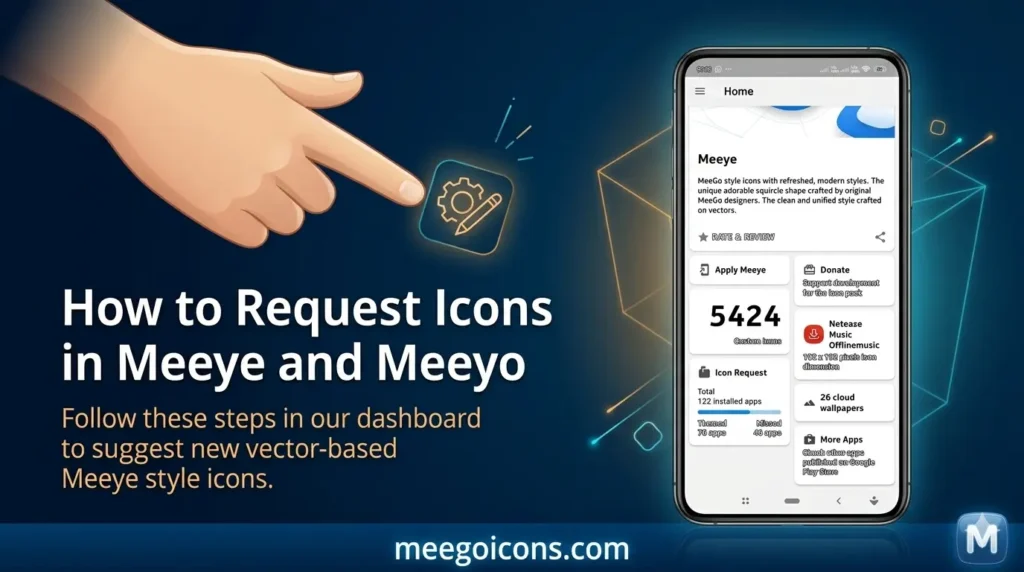
Why is it important to request custom icons?
Both Meeye and Meeyo offer Nokia N9 icon packs, but icons for some local apps, banking apps, or newly launched apps may still be missing. The developer (YeyeBBC) takes requests from the community and adds them in regular updates. If your favorite app’s icon has become the default Android icon, the best way is to request it.
How to Request a Custom Icon in Meeye & Meeyo
The process for both packs is almost the same. Here are the simple steps:
Regular Request
You are only able to make 5 request(s) with regular request. Icon request limit will be reset on every update. Follow these steps to request an icon:
- Open the Icon Pack
- Apply the Meeye or Meeyo icon pack to your launcher.
- Long-press on any app with a missing icon.
- The “Edit” or “Change Icon” option will appear.
- Find the Request Icon Button
- Scroll down in the icon edit screen.
- You’ll see a button labeled “Request Icon” or “Suggest New Icon” (blue in MeEye, similar in MeEye).
- Click it.
- Fill in the Details
- It’s important to enter the following information correctly:
- App Name: Enter the actual name of the app (e.g., “JazzCash” or “EasyPaisa”).
- Package Name: This is very important. It usually appears automatically, but if it doesn’t, copy the app’s package name from the Play Store (example: com.jazzcash.mobile).
- Current Icon: Take a screenshot of the one currently displayed.
- Suggested Icon: If you want a specific style of icon, you can attach an image of it (optional but recommended).
- Note: You can specify here which style you want—classic glossy (Meeye) or flat modern (Meeyo).
- Submit
- After submitting the request, a notification is sent to the developer. Now wait.
How long does it take for the request to be approved
Normal cases take 7 to 20 days. If the app is very popular (such as banking, ride-sharing, or local food delivery), it may be added sooner. Some requests may take up to a month if the developer is busy.
Tip: Don’t make 2-3 requests at once. Make only 1-2 requests per week to avoid spamming the developer.
Tips to Increase Chances of Request Approval
Enter a clear package name correctly (this is the most common mistake). Attach a high-quality screenshot of the current icon. Clearly write in Notes which pack you’re requesting (Meeye or Meeyo). If possible, write a short message about which country the app is popular in (Pakistan/India apps are accepted faster).
Alternative Methods (If Requests Are Slow)
If you don’t want to wait too long, you can try this: Go to the Blueprint Dashboard and manually assign the icon (temporary solution). Create and use a custom icon pack (possible in Nova Launcher). Submit a direct request to the developer’s Telegram group or GitHub issues (but be polite).
Final Tips
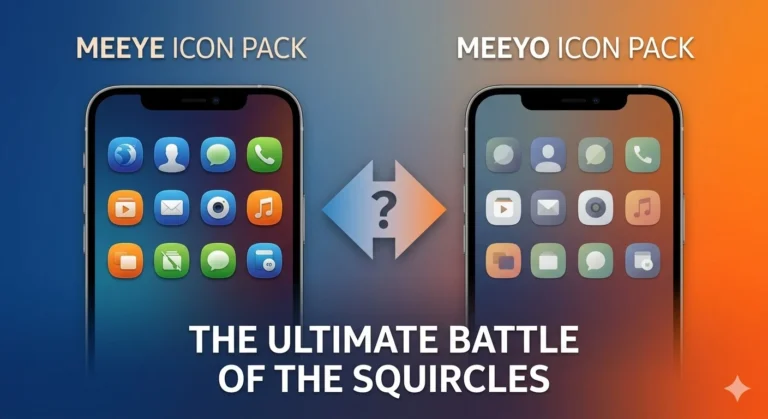
Meeye classic lovers prefer glossy-style icons, while Meeyo users prefer a flat and clean look. Keep this in mind when requesting. Check for regular updates. The developer often releases updates 1-2 times a week. If an app’s icon is never adding, let me know in the comments; I’ll try to help.